OpenWrt & Attended SysUpgrade

|
by Craig Miller
I recently had someone ask me how to keep their OpenWrt router up to date. Sadly, I have been using a slackware-esk method of upgrading, reconfiguring, re-installing packages, which takes a bit of time.
Fortunately, the OpenWrt Devs have been working on this problem for a few releases. Their solution is Attended SysUpgrade, which is a funky name that means, you are manually starting the process of a system upgrade. Although it is initiated manually, it does quite a few things automatically, including installing your additional packages.
Make a Backup!
One should get in the habit of making backup of one's OpenWrt router before messing with it. It takes less than 5 seconds to make a backup. OpenWrt will backup the configuration files, and any additional files you may have selected for backup. After logging into the web management interface, navigate to System->Backup/Flash Firmware.
In the top Backup section, click the Generate Archive button. Done, you have just made a backup of your router's configuration. (The backup will be downloaded to your Downloads folder on your laptop with the name of your router, and date in the name)
Introducing Attended SysUpgrade tool
There is both a CLI-based tool, auc and a web management-based tool, luci-app-luci-app-attendedsysupgrade. I'll cover the web management tool in this article.
The tool will:
- Search for upgrade releases, and present them as a pull down menu
- Note all the additional packages you may have installed
- The OpenWrt server will build a new sysupgrade image with your additional packages
- Give you the option to continue, and then upgrade your router with the new customized image and retain/migrate your configuration to the newer release
Installing the Attended SysUpgrade Tool
The beauty of OpenWrt is that there are thousands of additional packages you can add to customize your router the way you want (true Linux freedom). It should not be surprising then, that there is a package for the web management-based Attended SysUpgrade tool.
After logging into the web interface (aka LuCI) of your router, navigate to the System->Software page. Click on Update Lists to pull down a fresh copy of the available packages. Then search for luci-app-att, the package should be displayed below, as shown here:
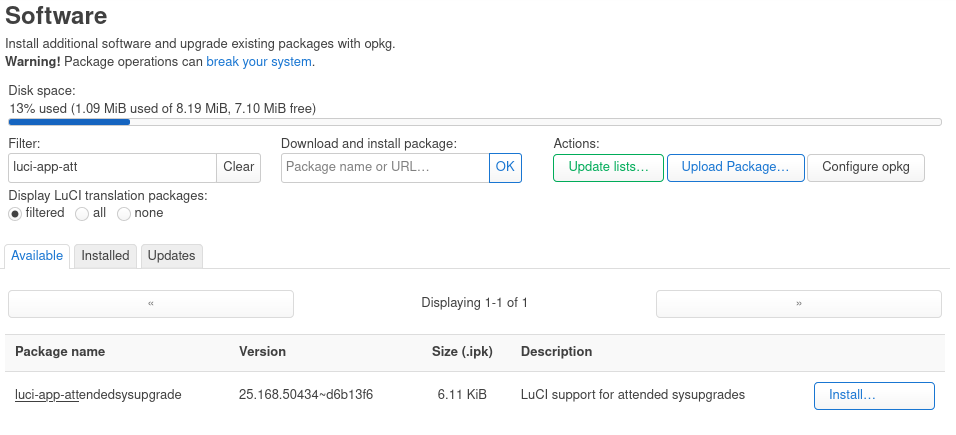
Click the Install button to the right of the package
At this point, you may have to log out of the web management page and relogin to see the new menu item that has been added by the tool.
Running the Attended SysUpgrade Tool
After re-logging into your router, navigate to System->Attended Sysupgrade.
Then click on the green Search for firmware upgrade button. The tool will contact the server-side of the Attended Sysupgrade tool, and present a list of potential upgrade releases.
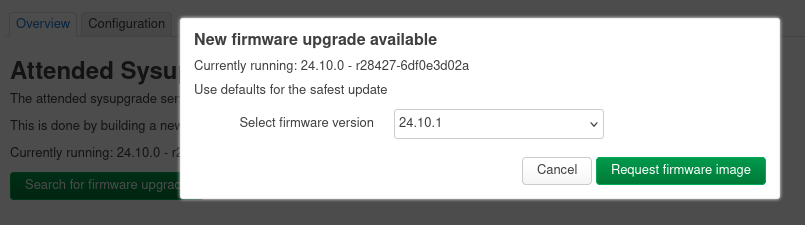
Creating a custom image
Then click on the Request firmware upgrade button, which will signal the OpenWrt server to build a custom image with your additional packages.
The dialogue will provide updates to the status of building your customized image and then present the following:
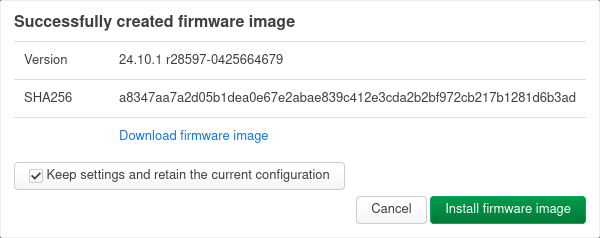
There's a lot happening in this dialogue. It is reporting which release it has built, and includes a SHA256 hash of the image.
There is a link to download the image to your laptop. This is useful in two ways:
- Checking the SHA25 hash
- Installing the customized images on other routers (of the same make/model)
There is a check box which allows you to retain your current configuration data. Most of the time, you will want this to be checked.
And finally there is the green Install firmware image button. Clicking this button is a commitment to upgrading the router.
Upgrading your router
Clicking the green Install firmware image button, you will see:

The router will reboot with the new image which includes any packages you had installed, and your configuration.
What Attended Sysupgrade can't do
The Attended Sysupgrade tool works well for upgrading an existing router with OpenWrt previously installed. The package luci-app-luci-app-attendedsysupgrade goes back to atleast OpenWrt version 21.02.x. I have not tested using the tool to skip releases (and this may not work).
Not a Migration Tool
However, it is not a migration tool. It will not migrate your configuration from one router to another router of a different make/model. The use case is that you are not only interested in upgrading the software but you want a faster newer router as well. There is not easy migration tool for OpenWrt, although I have recently had success with using 'uci export/importandmeld` (I'll cover this method in another presentation).
Won't upgrade certain routers
The Attended Sysupgrade tool talks to a different server than the build server, and therefore some base images are not present on https://sysupgrade.openwrt.org. For example, my BT Home Hub 5A routers had an init error (which after some digging, meant that the base image was missing)
Won't check your available FLASH
The Attended Sysupgrade tool will create an image with your packages already installed. However, it is possible for the new release base-image to be larger than what you are running now. It is possible to fill up your storage (Flash) on the router.
Check the release requirements. For example, 24.10.x the current release (currently) requires 16MB of storage (aka Flash). Any additional packages you have installed will add to the base-image storage requirement.
The recent releases (from 23.05 and on) include on the main overview page info on storage:

Summary
I tested this on three of my routers, including the recently acquired TP-Link AX23, which worked as expected.The Attended Sysupgrade tool isn't perfect, but it can make keeping your router up to date, while keeping the downtime to a minimum.
Notes:
- Another review of Attended Sysupgrade
- As of OpenWrt 24.10.x the CLI tool is called
owutrather thanauc
22 June 2025