MX Linux & iPhone
|
by Craig Miller
I have migrated from Android to iOS (iPhone) about six years ago. Primarily, I wanted to start disconnecting myself from Google, which had already removed the famous line "We are not evil" from their website.
MX Linux Overview
According to Distrowatch, MX Linux is the number THREE linux distro right now. The user interface looks great. The distro gives you the choice to run (or not) systemd.
The default choice is not to run systemd, even so, it still uses a couple of the systemd utils (systemd-logind and systemd-udev), but the key aspect of running systemd-free is using a SystemV init. This follows the old unix philosophy of keeping components small, doing one thing, and doing it well.
I have been using MX Linux on my Thinkpad X13 Gen4 laptop for about nine months, and it runs amazingly well.
Connecting the iPhone to Linux
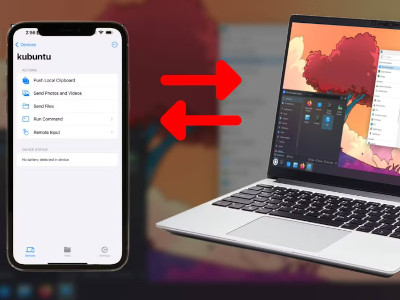
There is a very popular project called KDE Connect which can do amazing things, such as share clipboards, do screen grabs from your phone, and of course share files. BUT it requires a lot of KDE libraries to be installed.
What I wanted to do was use my iPhone as a camera, and move the photos to my laptop, where I can use them to share with my friends, or watch them on my Photo Frame (aka my living room computer).
Minimalist MX Linux
I am running XCFE4 as my desktop, which be default is not only has a small foot print, but also doesn't have any KDE libraries installed (by default). It doesn't mean that they can't be installed, but I would rather not install a bunch of stuff if I don't have to.
MX Linux iDeviceMounter
Fortunately, MX Linux does have an app to mount one's iPhone, called iDeviceMounter. It can be installed with the following command:
sudo apt install mx-idevice-mounter usbmuxd
IDeviceMounter relies on usbmuxd to find the iPhone/iPad, so it must be started (as root) before running the iDeviceMounter app.
sudo usbmuxd
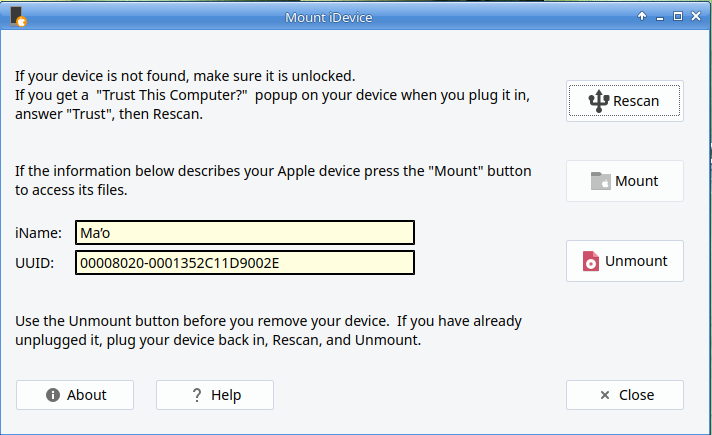
Once iDeviceMounter is installed, find the app under the menu->MX Tools->iDeviceMounter, and click to start:
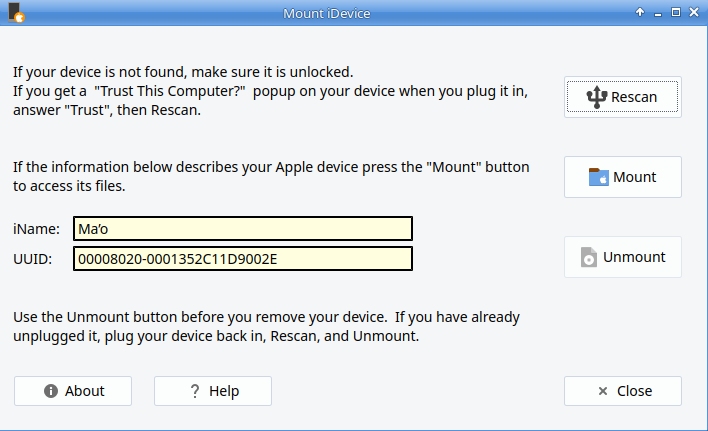
If you don't have your phone plugged in (via USB), then the phone name and UUID won't be displayed. To fix this, unlock your iPhone and plug it in using an iPhone charging cable (Lightening connector on one end, and USB on the other). The iPhone will then ask if the device is trusted:
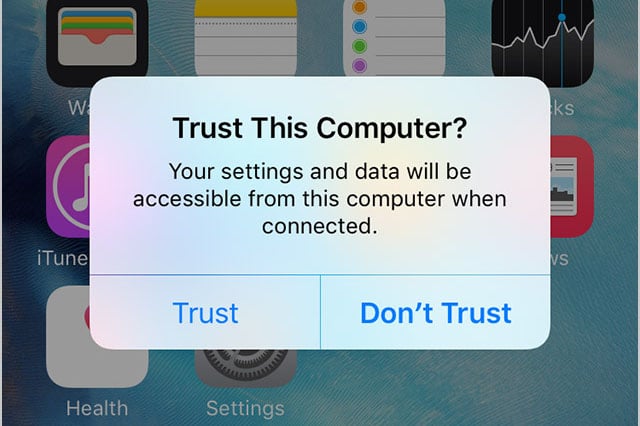
Answer Trust
Mounting the iPhone using MX iDeviceMounter
Now that your computer is a trusted device (with respect to the iPhone) you can clock on "Rescan" to find your phone. After rescanning, the phone name and UUID should be displayed.
To mount the iPhone, just click Mount.
A Thunar (XFCE4 File Manager) window will open displaying folders on your iPhone. It won't show everything on the iPhone, but it will show the photos under the DCIM folder
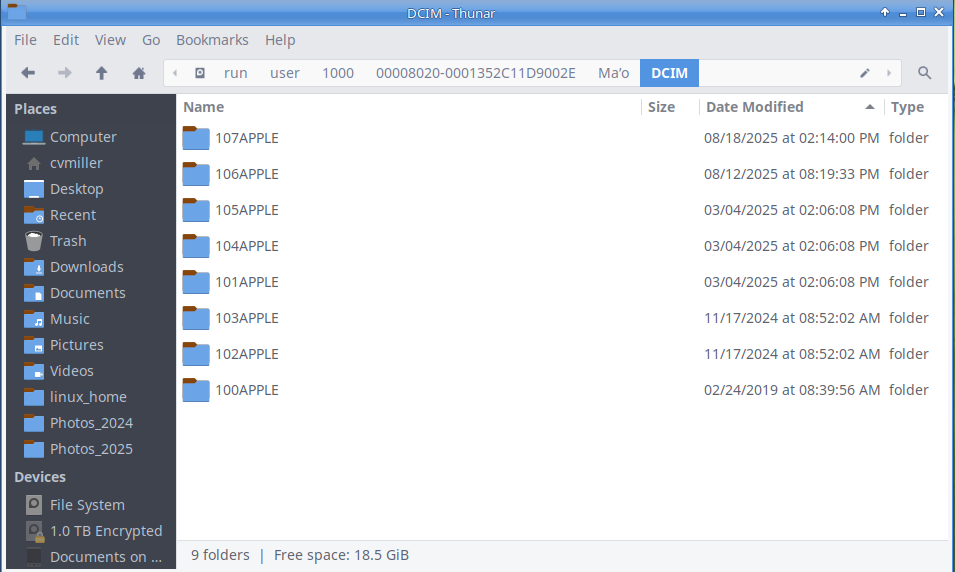
Now you can just drag the photos you want to your laptop.
Unmounting the iPhone
Like everything in Linux, it is a good idea to unmount drives before physically removing them. Here MX iDeviceMounter is a little non-intuitive, because once the phone was mounted the iDeviceMounter app disappears.
The Easy way: Close the file manager window displaying your iPhone's contents, then the iDeviceMounter app will magically re-appear. Now it is a simple thing to click on the Unmount button
Easy transfer of Photos
Using MX iDeviceMounter, I can easily copy my photos from the iPhone to my Linux Laptop. And I don't have to live in Apple's Walled Garden to do it.
Notes:
- Of course, one could use KDE Connect, if one needed all the extra stuff it can do. But my needs are pretty simple.
- There is another Linux Project, libimobiledevice, that looked promising, however it requires quite a bit of recompiling and version 1.30 throws protocol errors.
1 September 2025
Updated 24 September 2025